
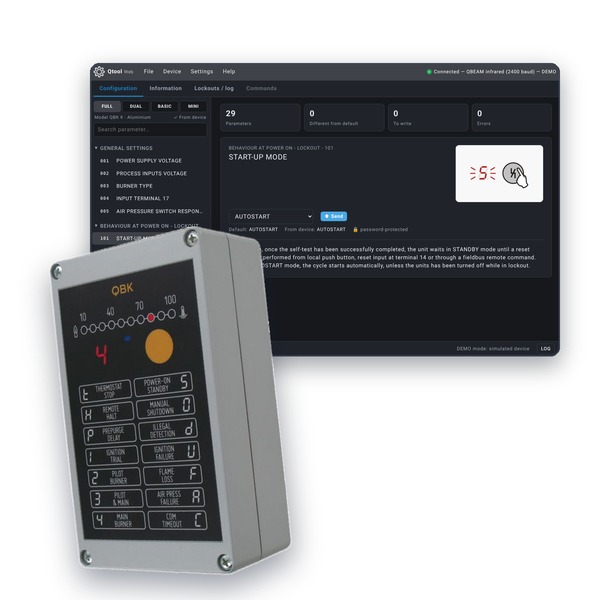

CONFIGURATION AND DIAGNOSTICS IN YOUR BROWSER
Nothing to install: open the page and start.
Works on PC, tablet and smartphone, installable as an app.
Qtool Web is the browser version of Qtool, a configuration and diagnosis tool for Burner Management Systems based on QBK Burner Control Unit. Using Qtool Web is possible to upload and download configuration parameters and read information for the following devices:
• QBK FULL
• QBK DUAL
• QBK BASIC
• QBK MINI
• TraxInterface4
Configuration can be saved and retrieved from file (.qbk, compatible with Qtool for Windows) and printed or exported to a text file.
Qtool Web generates the order code for the current configuration (File → Order code, same format as Qtool for Windows) and loads a configuration by pasting an order code.
It includes an embedded communication terminal to evaluate remote commands, built-in help (F1) and five languages: English, Italian, Spanish, French and German.
VIDEO TUTORIAL
A short overview, recorded in demo mode. YouTube
CONFIGURATION
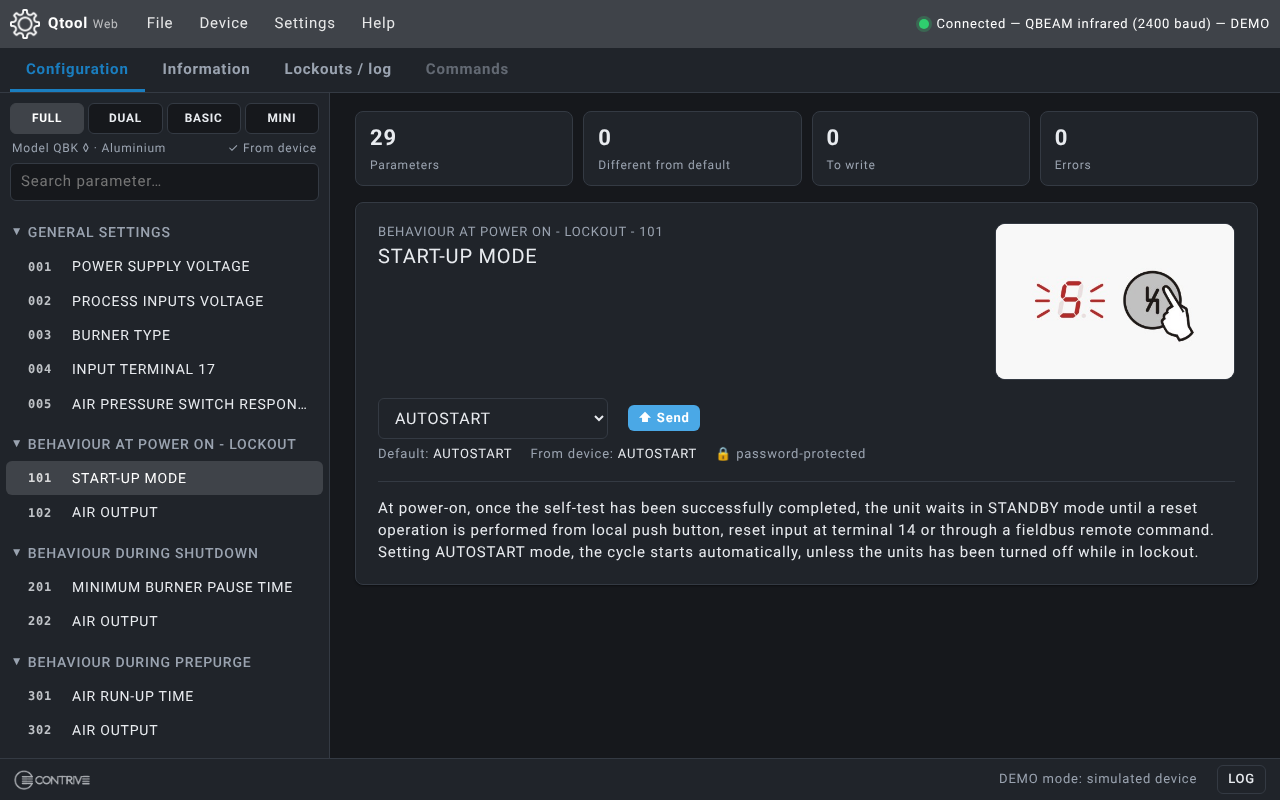
Within the configuration workspace is visible the list of all available parameters in logical sequence for each step of operating cycle. The detailed description and available options for the selected parameter are shown within the right pane. Parameters that differ from the default, and those changed but not yet written, are highlighted.
INFORMATION
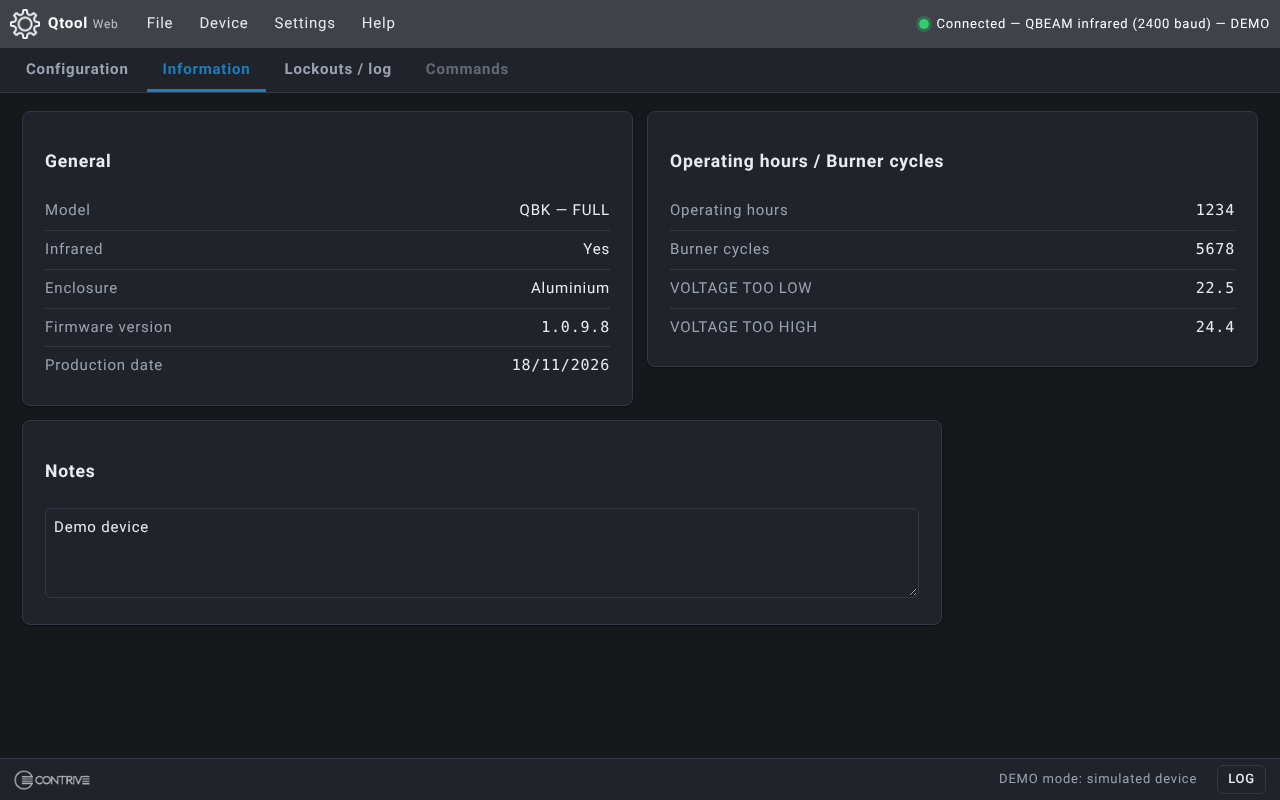
Detailed information read from linked device are shown within the information workspace:
Date of production and firmware version
Description of last lockout/failure
History of lockouts/failures with detailed description
Cycles deployed and operating hours
Value of last over/undervoltage (if any)
Optional notes stored within the unit
DEMO MODE
With no hardware at all you can try every function on a simulated device:
use Help → Demo mode. The default password for writing in demo mode is 0000.
Additional tools available from the Commands tab and the Device menu.
Remote Commands
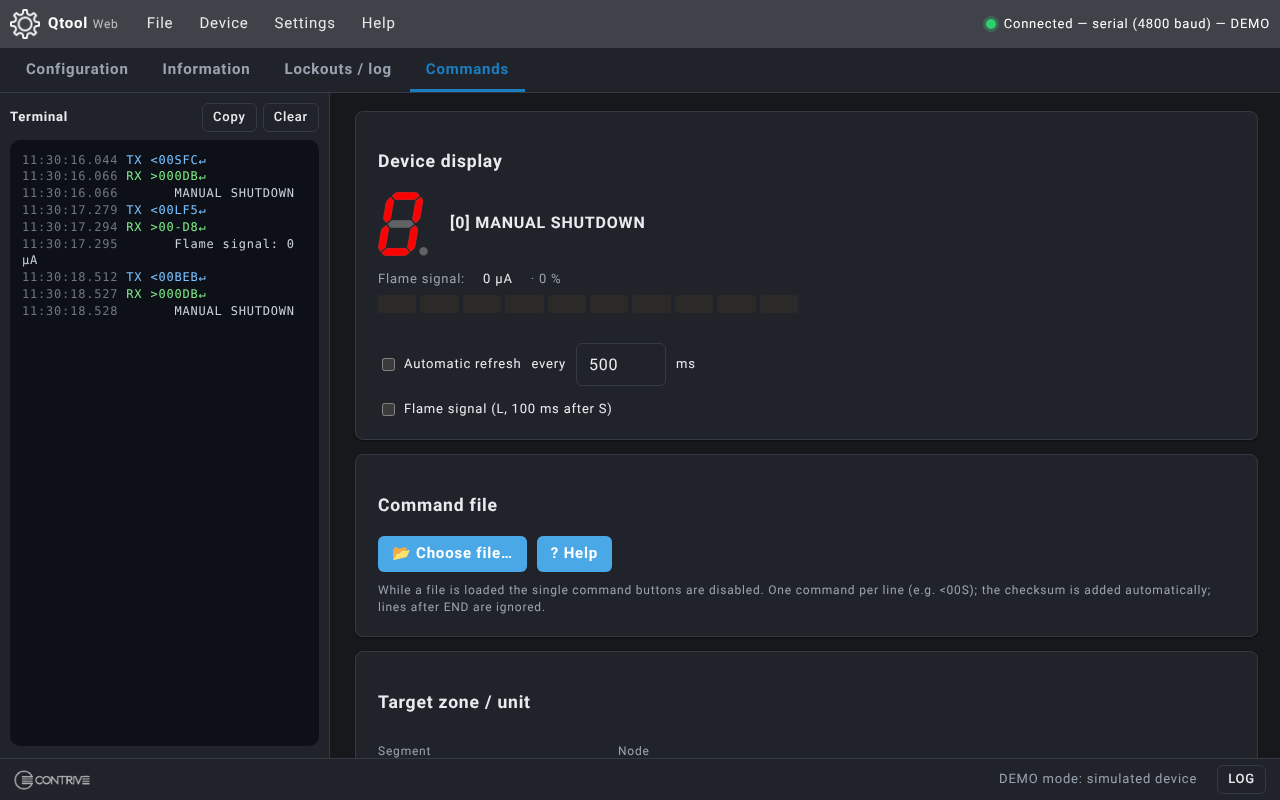
Control panel to evaluate the QBK remote management: single commands, automatic status refresh and flame signal.
Command file
Load a text file with a sequence of commands (one per line, also for several devices) and run it once or in a loop.
TraxInterface – Service Port
TraxInterface4 • Send/receive TraxBus through the Service Port (PC only).
Password and security
Security parameters require the device password. The password is never written into saved files or printed reports. From the Device menu → Change device password (serial/TraxInterface4) the customer can change it.
Qtool Web talks to QBK through the infrared interface or through a serial line / TraxBus, using the browser's Web Serial API.
Google Chrome or Microsoft Edge are required (Android included); the browser asks you to select the port when connecting.

INFRARED INTERFACE
Put a Q|beam.USB close to the front panel of a single QBK to realize the link.
Qtool Web communicates via infrared adapter linked to the USB port, allowing:
• Reading configuration and information (no password)
• Writing configuration (password required for protected parameters)
• Communication parameters 701–704 always writable

SERIAL – PC
One or more QBK devices connected through an RS232/RS485 line (ASCII, 19200 baud).
Select:
• Serial port in use
• Segment and node of the QBK to be linked
• or use Find device to scan the line

TraxInterface4 - Service Port
Qtool Web communicates with the PC through the Service port, allowing:
• QBK configuration and control
• TraxBus transparent mode
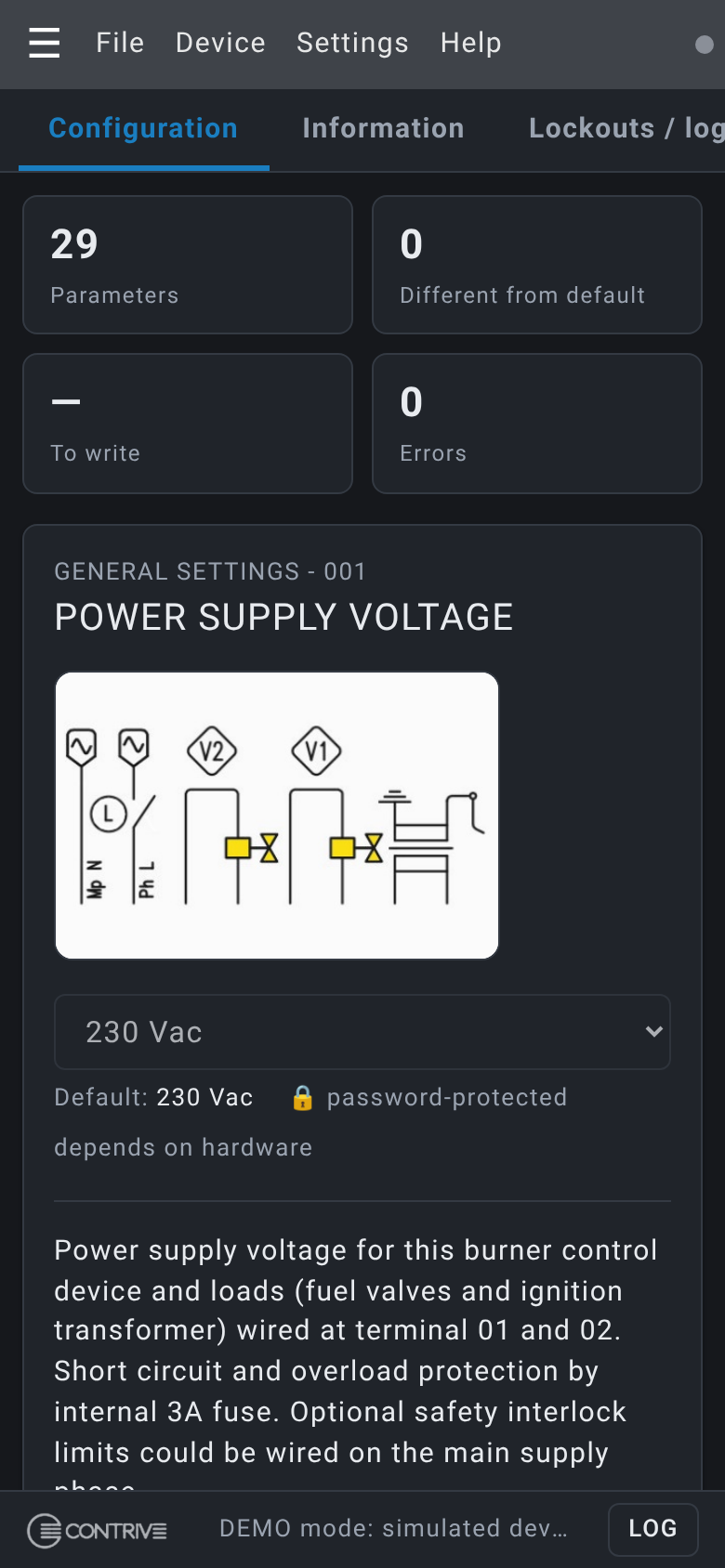
TABLET AND SMARTPHONE
On Android, Qtool Web works with the Q|beam.USB adapter connected through a USB OTG cable. Serial and TraxInterface4 connections are available from a PC only.
It can be installed as an app from Settings → Install as app and also runs offline (except for the device connection).
PASSWORD NOTE
The security parameters password is assigned at the factory: each customer has their own, provided on request by the HelpDesk.